How to integrate Ion-Nav with Vue3 and Ionic in a Modal.

Prerequisites:

Vuejs: 3.0.0

Ionic: 5.4.0

Install ionic Ionic Vue Quickstart – Ionic Documentation (ionicframework.com)

Create 4 components:

Profile

Used to open and close the modal.

<template>
  <ion-buttons slot="start">
    <ion-button @click="setOpen(true)">
      <ion-icon :icon="personOutline" h="40" w="40" />
    </ion-button>
  </ion-buttons>
  <ion-modal :is-open="isOpenRef" @onDidDismiss="setOpen(false)">
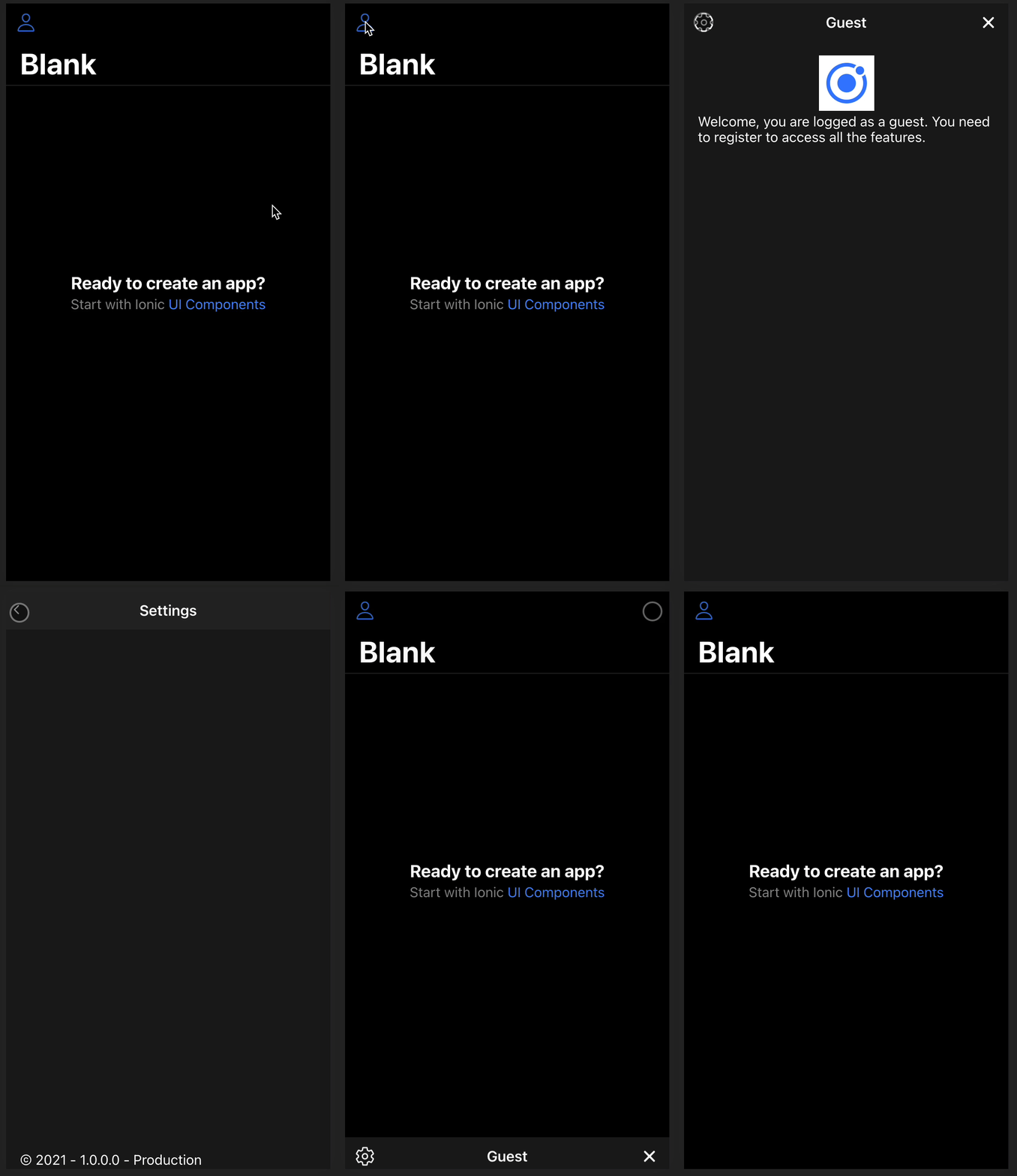
    <ProfileModal :rootPage="ProfileDetail"></ProfileModal>
  </ion-modal>
</template>

<script lang="ts">
import { IonModal, IonButton, IonIcon, IonButtons } from "@ionic/vue";
import { personOutline } from "ionicons/icons";

import { defineComponent, ref } from "vue";
import ProfileModal from "@/components/profile/ProfileModal.vue";
import ProfileDetail from "@/components/profile/ProfileDetail.vue";

export default defineComponent({
  name: "Profile",
  components: { IonModal, IonButton, IonIcon, IonButtons, ProfileModal },
  setup() {
    const isOpenRef = ref(false);
    const setOpen = (state: boolean) => (isOpenRef.value = state);
    return { isOpenRef, setOpen, personOutline, ProfileDetail };
  },
});
</script>

ProfileModal

Used to display the modal. The “nav” id is mandatory to be able to change the content of the ion-nav from a children component.

<template>
  <ion-nav :root="rootPage" id="nav"> </ion-nav>
</template>
<script lang="ts">
import { IonNav } from "@ionic/vue";
import { defineComponent } from "vue";

export default defineComponent({
  name: "ProfileModal",
  components: {
    IonNav,
  },
  props: {
    rootPage: {
      type: Object,
      required: true,
    },
  },
});
</script>

ProfileDetail

Main content for the modal.

We use the document.getElementById(“nav”) as any; to get the ion-nav item and be able to call the navigation.

/ ! \ This part can be improved with a Repository or Singleton to store the ion-nav component and import and call from any other component.

<template>
  <ion-toolbar color="translucent">
    <ion-buttons slot="start">
      <ion-button @click="goToSettings">
        <ion-icon :icon="settingsOutline" h="40" w="40" />
      </ion-button>
    </ion-buttons>
    <ion-title> Guest</ion-title>
    <ion-buttons slot="primary">
      <ion-button @click="closeModal">
        <ion-icon :icon="closeIcon" h="40" w="40" />
      </ion-button>
    </ion-buttons>
  </ion-toolbar>
  <ion-content fullscreen class="ion-padding">
    <div class="user-logo-container">
      <img src="../../assets/icon.png" height="64" />
    </div>
    <div>
      <ion-text
        >Welcome, you are logged as a guest. You need to register to access all the
        features.</ion-text
      >
    </div>
  </ion-content>
</template>
<script lang="ts">
import {
  IonToolbar,
  IonTitle,
  IonContent,
  IonButton,
  IonText,
  IonButtons,
  IonIcon,
  modalController,
} from "@ionic/vue";
import { close as closeIcon, settingsOutline } from "ionicons/icons";
import { defineComponent, onMounted, ref } from "vue";
import Settings from "@/components/profile/Settings.vue";

export default defineComponent({
  name: "IdeaNew",
  components: {
    IonToolbar,
    IonTitle,
    IonContent,
    IonButton,
    IonText,
    IonButtons,
    IonIcon,
  },
  setup() {
    const modalNav = ref(null);

    onMounted(() => {
      modalNav.value = document.getElementById("nav") as any;
    });

    const goToSettings = () => {
      (modalNav.value as any).push(Settings, {
        modalNav: modalNav,
      });
    };

    const closeModal = async () => {
      await modalController.dismiss();
    };

    return {
      closeIcon,
      settingsOutline,
      closeModal,
      goToSettings,
    };
  },
});
</script>
<style>
.user-logo-container {
  text-align: center;
}

.user-id-container {
  position: absolute;
  bottom: 2px;
}
</style>

Settings

Sample page to show the navigation.

<template>
  <ion-toolbar>
    <ion-buttons slot="start">
      <ion-nav-link router-direction="back">
        <ion-icon :icon="chevronBack"></ion-icon>
      </ion-nav-link>
    </ion-buttons>
    <ion-title> Settings</ion-title>
  </ion-toolbar>
  <ion-content fullscreen class="ion-padding">
    <div class="settings-version-container">
      <ion-text>© 2021 - 1.0.0.0 - Production</ion-text>
    </div>
  </ion-content>
</template>
<script lang="ts">
import { IonToolbar, IonTitle, IonContent, IonIcon, IonNavLink } from "@ionic/vue";
import { defineComponent } from "vue";
import { chevronBack } from "ionicons/icons";

export default defineComponent({
  name: "Settings",
  components: { IonToolbar, IonTitle, IonContent, IonIcon, IonNavLink },
  props: {
    modalNav: {
      type: Object,
      required: true,
    },
  },
  setup() {
    return { chevronBack };
  },
  methods: {},
});
</script>
<style scoped>
.settings-version-container {
  position: absolute;
  bottom: 2px;
}
</style>

You can find the repository on Github.

SharePoint 2010 – Visual Studio Workflow – GAC / DLL Update

SharePoint 2010

Visual Studio 2010 / .Net Framework 3.5

Use a Powershell command to Retract, Delete, Add and Install the solution again.

Open SharePoint Managment Shell, in my case I used stsadm commands but you should be able to use the powershell command also.

stsadm:


stsadm -o retractsolution -name [WSP-Name.wsp] -local -url [SPSite-Ur]

stsadm -o deletesolution -name [WSP-Name.wsp] -override

stsadm -o addsolution -filename [WSP-Path]

stsadm -o deploysolution -name [WSP-Name.wsp] -immediate -allowGacDeployment -force 

powershell:

Uninstall-SPSolution -Identity [WSP-Name.wsp]

Remove-SPSolution -Identity [WSP-Name.wsp]

Add-SPSolution [WSP-Path]

Install-SPSolution -Identity [WSP-Name.wsp] -AllWebApplications -GACDeployment

Then you must restart the SharePoint Timer Service in services.msc

timer

You can also do it with the following command:

net stop SPTimerV4 && net start SPTimerV4

If you don’t restart the timer service, SharePoint will keep in memory the dll even if the file is not physicaly in the GAC folder.


SharePoint 2013 – Managed Metadata Navigation – Document Library – Feature – C#

Introduction

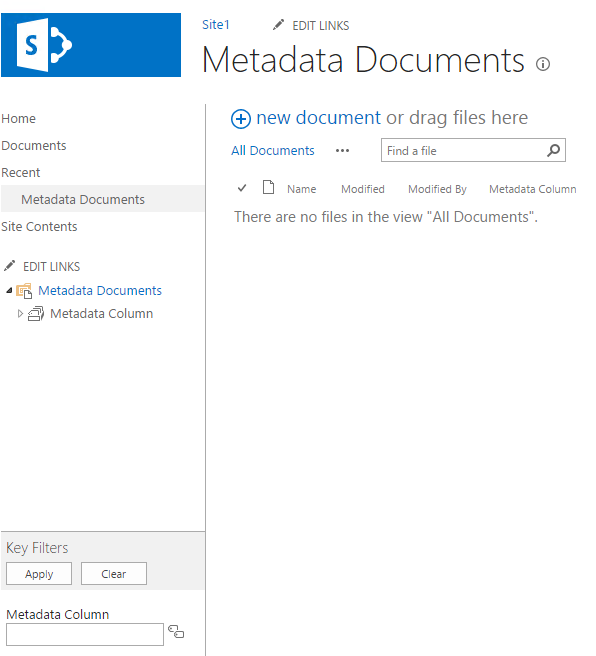
This tutorial will help you to create a Document Library and enable Metadata Navigation Filtering with custom columns.

It will all be done with Visual Studio, a Feature and an Event Receiver.

You will need Visual Studio 2013/2015 and SharePoint 2013.

Download the project here.
Result

1. Visual Studio Solution

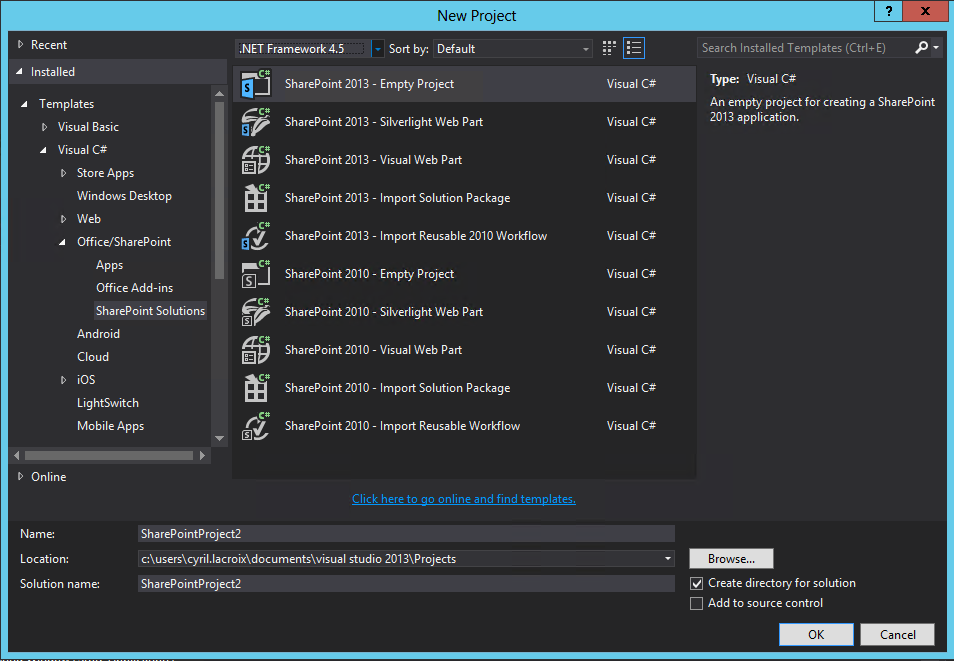
Create a new SharePoint 2013 – Empty Project.
EmptyProject

You can organize your project as follow:

Add 3 folders:

-Column

-ContentType

-List

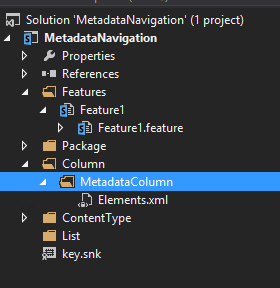
Add a new Site Column in the Column folder.
SiteColumn

If the Site Column didn’t load correctly (like in the picture above), just save everything unload the project and reload it.
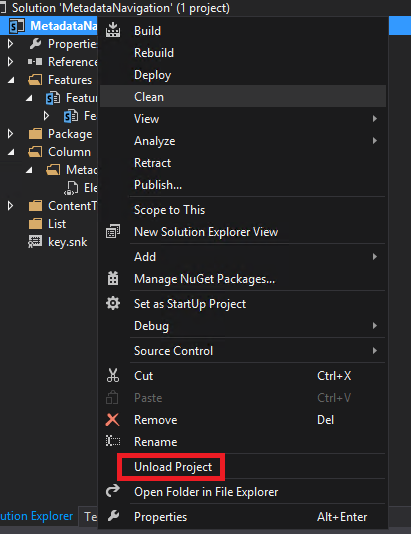
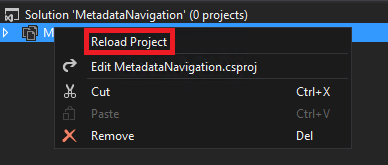
Unload

Reload

Then you should see the Site Column with the icon like below.
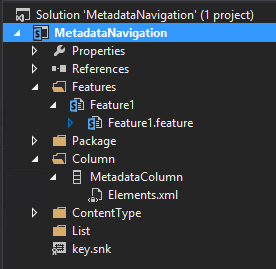
SiteColumn2

Double click on your column to edit it.

To use this column as Taxonomy Field you must add an hidden note field inside and linked it to the column.

So don’t forget to put the GUID in the customization part of your column.

This hidden note field will be used to store the text that the user will type for filtering, it’s really important for the Key Filter.

For this new hidden note field you need to generate a new Guid you can use the Visual Studio tool for that called guidgen.exe

You can find it in Visual Studio in the top bar menu click Tools, Create GUID.

CreateGUID

Or you can find this tool here: C:\Program Files (x86)\Microsoft Visual Studio 12.0\Common7\Tools\guidgen.exe

In the window select Registry Format then click New GUID and finally Copy.
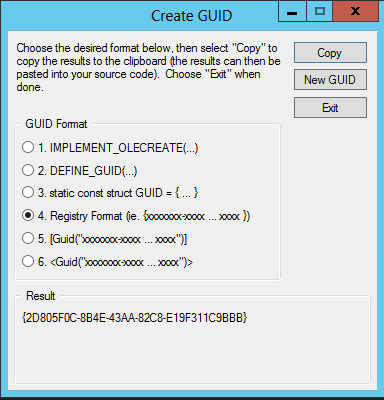
GUID

You can use the Guid like that (upper case works just fine)

For the new field do as follow (standard SharePoint naming for Taxonomy hidden field):

Name = ColumnNameTaxHTField0
DisplayName= ColumnName_0
StaticName = ColumnNameTaxHTField0

<?xml version="1.0" encoding="utf-8"?>
<Elements xmlns="http://schemas.microsoft.com/sharepoint/">
<Field ID="{BFD4F83B-F5A3-4E7D-A96E-1E6C64D23798}" 
Name="MetadataColumnTaxHTField0" 
DisplayName="MetadataColumn_0" 
StaticName="MetadataColumnTaxHTField0" 
Type="Note" 
ShowInViewForms="FALSE" 
Required="FALSE" 
Hidden="TRUE" 
CanToggleHidden="TRUE" 
RowOrdinal="0" 
Group="- Custom Group"/>
<Field ID="{dd644310-71d0-4f7b-983a-8e092c1cbc73}" 
Name="MetadataColumn" 
DisplayName="Metadata Column" 
StaticName="MetadataColumn" 
ShowField="Term1033" 
Type="TaxonomyFieldType" 
Required="FALSE" 
Group="- Custom Group">
<Customization>
<ArrayOfProperty>
<Property>
<Name>TextField</Name>
<Value xmlns:q6="http://www.w3.org/2001/XMLSchema" p4:type="q6:string" xmlns:p4="http://www.w3.org/2001/XMLSchema-instance">BFD4F83B-F5A3-4E7D-A96E-1E6C64D23798</Value>
</Property>
</ArrayOfProperty>
</Customization>
</Field>
</Elements>

2. Content Type

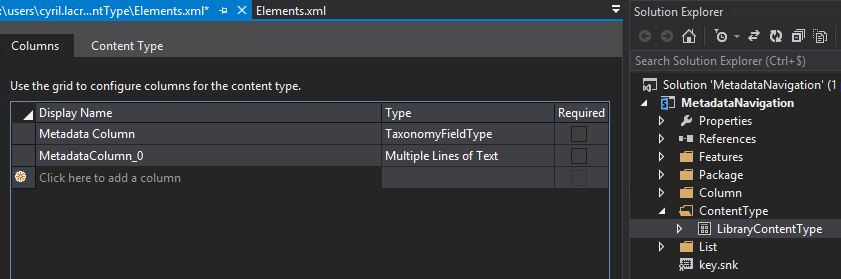
Add a new Content Type in the ContentType folder.

Double click on it to edit it and add both fields that you just created.
ContentType

3. List

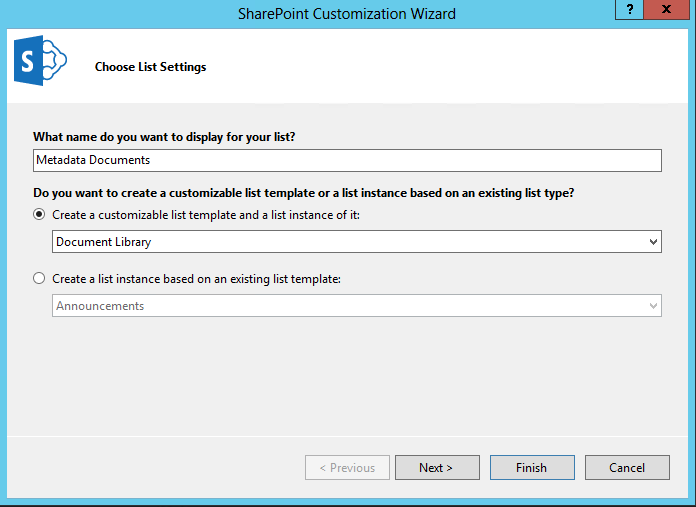
Add a new Document Library to the list folder, you can also do this with a List.
DocumentLibrary

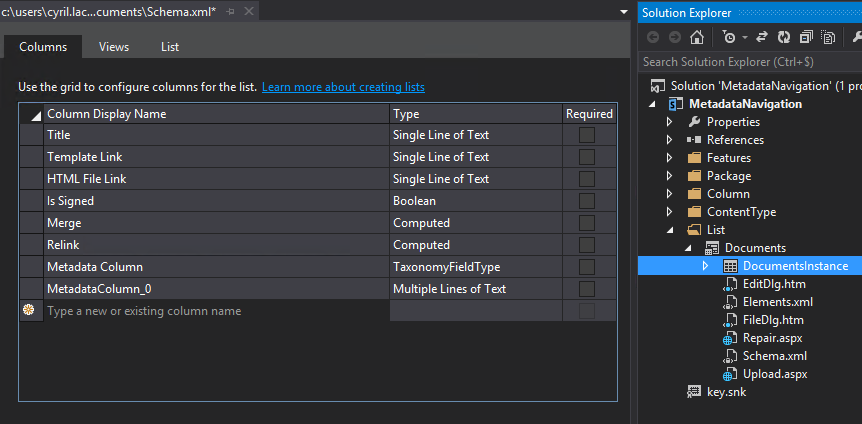
Double click on it to edit it and add both fields.
Library1

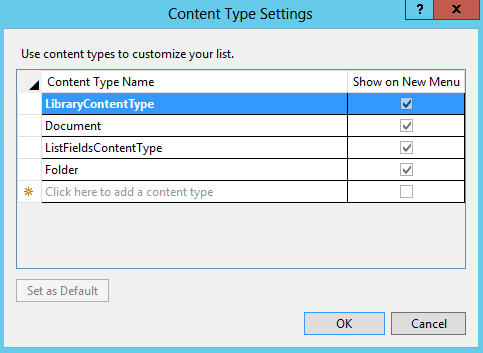
Click on Content Type.

Library2

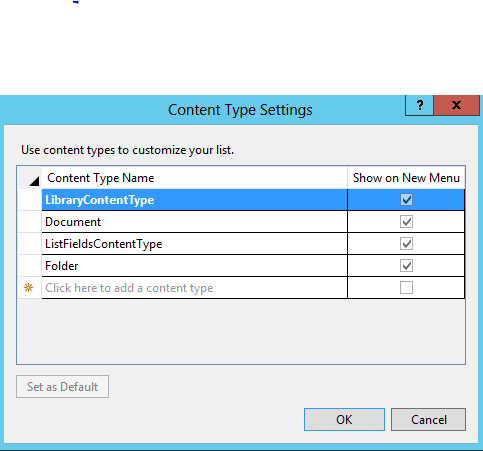
Add your content type and set it as default.
Library3

4. Event Receiver

Rename your feature and add a new Event Receiver by right clicking on it.
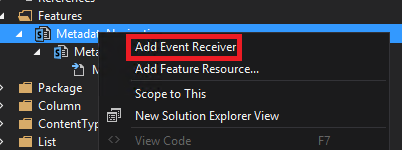
EventReceiver

Open the Event Receiver C# file.

Uncomment the FeatureActivated method and put a try / catch inside and remove the throw in the catch.

Add the following variables and change the value if needed.


 try
 {
 SPContext context = SPContext.Current;

 Guid managedMetadataFeatureId = new Guid("7201d6a4-a5d3-49a1-8c19-19c4bac6e668");
 string listName = "Metadata Documents";
 string fieldName = "Metadata Column";
 string termStoreName = "Managed Metadata Service";
 string groupName = "Group1";
 string termSetName = "TermSet";


}
catch(Exception)
{

}

Enable the Metadata Navigation and Filtering feature on the site.

Below the last variable and inside the try / catch add the following code:


 //Activate Metadata Navigation and Filtering feature if it's not already activated
 if (context.Web.Features[managedMetadataFeatureId] == null)
 context.Web.Features.Add(managedMetadataFeatureId);

Open your Cental Admin go to Application Management then Manage Service Application then click on the link below your Managed Metadata Service to open it.
Use the SharePoint interface to create and add a new Group, a new TermSet and some Terms. You can also use existing terms.
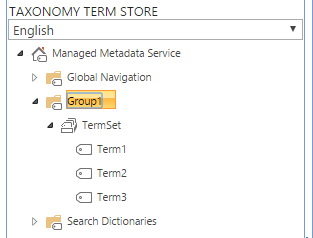
TermStore

Add the Microsoft.SharePoint.Taxonomy dll to your project references. You can find it here C:\Program Files\Common Files\microsoft shared\Web Server Extensions\15\ISAPI
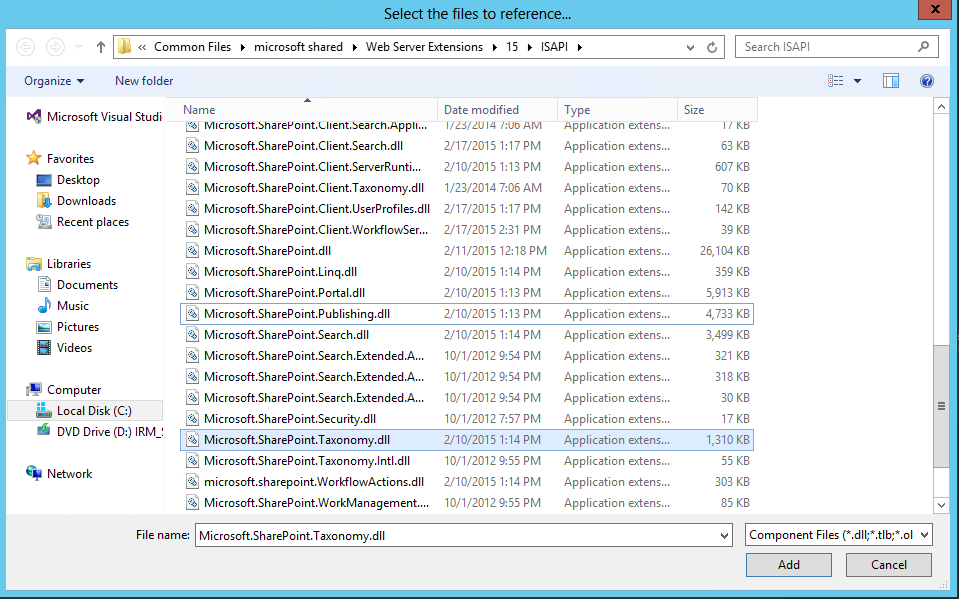
TaxonomyDLL

To associate your column with the terms add the following code below the feature activation:

  //Associate TermSet with the Column

 //Connect to the TermStore
 TaxonomySession session = new TaxonomySession(context.Site);

 TermStore termStore = session.TermStores[termStoreName];
 Group group = termStore.Groups[groupName];
 TermSet termSet = group.TermSets[termSetName];

 //Get the field
 SPList list = context.Web.Lists[listName];
 TaxonomyField field = list.Fields.GetField(fieldName) as TaxonomyField;

 field.SspId = termSet.TermStore.Id;
 field.TermSetId = termSet.Id;
 field.TargetTemplate = string.Empty;
 field.AllowMultipleValues = true;
 field.CreateValuesInEditForm = true;
 field.Open = true;
 field.AnchorId = Guid.Empty;

 field.Update();
 termStore.CommitAll();

Add the Microsoft.Office.DocumentManagement.MetadataNavigation dll to your project references.

You can find it here C:\Program Files\Common Files\microsoft shared\Web Server Extensions\15\ISAPI
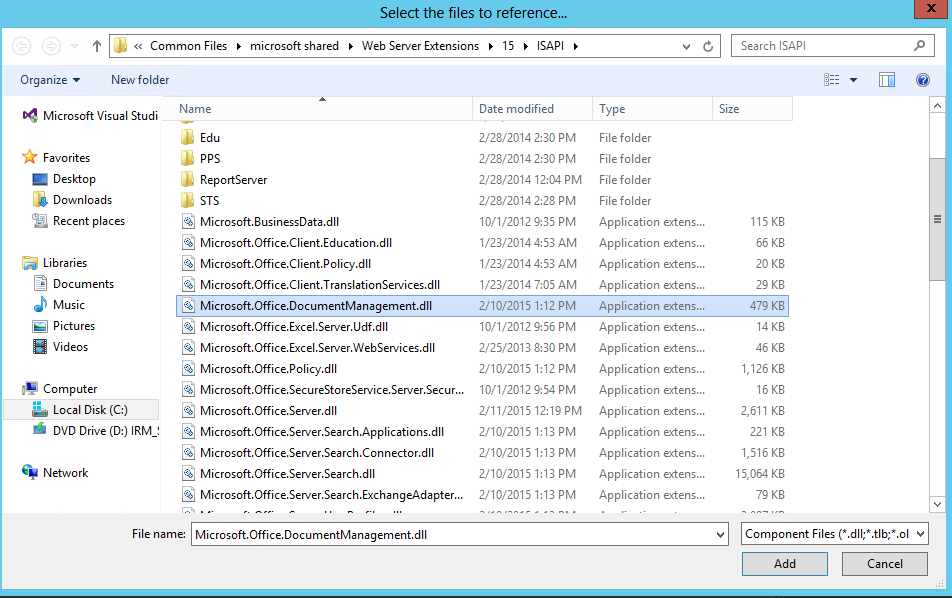
DocumentDLL Set your column as Hiearchy and KeyFilters.

 //Set Column as Metadata Navigation
 field = list.Fields[fieldName] as TaxonomyField;
 MetadataNavigationSettings navSettings = MetadataNavigationSettings.GetMetadataNavigationSettings(list);
 navSettings.ClearConfiguredHierarchies();
 navSettings.ClearConfiguredKeyFilters();

 //Hierarchy
 navSettings.AddConfiguredHierarchy(new MetadataNavigationHierarchy(field));


 //Key Filter
 navSettings.AddConfiguredKeyFilter(new MetadataNavigationKeyFilter(field));

 MetadataNavigationSettings.SetMetadataNavigationSettings(list, navSettings);
 list.RootFolder.Update();
 list.Update();

For some reason if I just put one column inside the Hierachy SharePoint will not display the Hierarchy menu on the library.
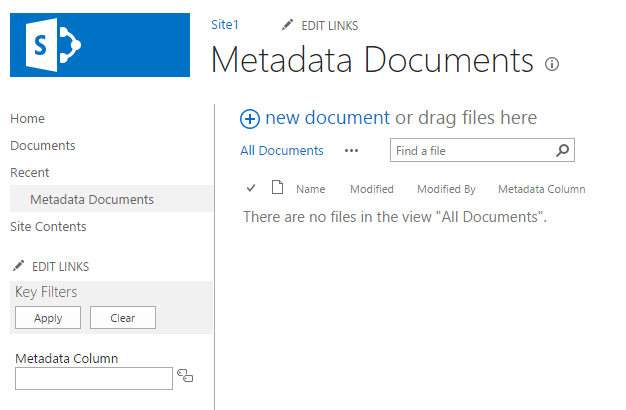
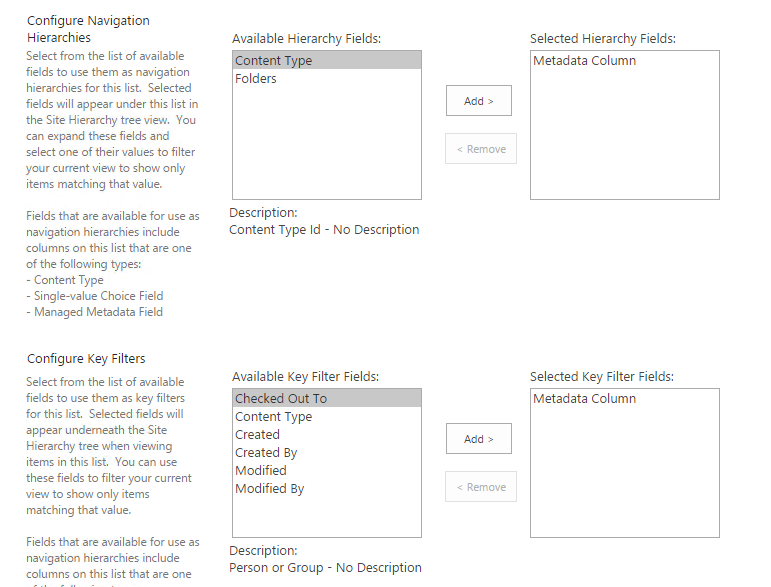
 

HierachyMissing

Settings
If I create 2 customs columns and add them to the Hierarchy it works or if I don’t clear the Hiearachy and keep the Folder column inside it will work.
You can also manually open the Metadata Navigation Settings in the Library Settings and just click Ok and it will also work.

For now I don’t have any solution about that… I you have one let me know 🙂

Also to have the Key Filter to display you must create the hidden note field that will hold the user filter as in my example above.

Download the project here.

Whole EventReceiver:


using System;
using System.Runtime.InteropServices;
using System.Security.Permissions;
using Microsoft.SharePoint;
using Microsoft.SharePoint.Taxonomy;
using Microsoft.Office.DocumentManagement.MetadataNavigation;

namespace MetadataNavigation.Features.MetadataNavigation
{
 ///

<summary>
 /// This class handles events raised during feature activation, deactivation, installation, uninstallation, and upgrade.
 /// </summary>


 /// <remarks>
 /// The GUID attached to this class may be used during packaging and should not be modified.
 /// </remarks>

 [Guid("46d87123-94d2-4bfe-8bc9-e2a84219e4fa")]
 public class MetadataNavigationEventReceiver : SPFeatureReceiver
 {
 // Uncomment the method below to handle the event raised after a feature has been activated.

 public override void FeatureActivated(SPFeatureReceiverProperties properties)
 {

 try
 {
 SPContext context = SPContext.Current;

 Guid managedMetadataFeatureId = new Guid("7201d6a4-a5d3-49a1-8c19-19c4bac6e668");
 string listName = "Metadata Documents";
 string fieldName = "MColumn2";
 string termStoreName = "Managed Metadata Service";
 string groupName = "Group1";
 string termSetName = "TermSet";

 //Activate Metadata Navigation and Filtering feature
 if (context.Web.Features[managedMetadataFeatureId] == null)
 context.Web.Features.Add(managedMetadataFeatureId);

 //Associate TermSet with the Column

 //Connect to the TermStore
 TaxonomySession session = new TaxonomySession(context.Site);

 TermStore termStore = session.TermStores[termStoreName];
 Group group = termStore.Groups[groupName];
 TermSet termSet = group.TermSets[termSetName];

 //Get the field
 SPList list = context.Web.Lists[listName];
 TaxonomyField field = list.Fields.GetField(fieldName) as TaxonomyField;

 field.SspId = termSet.TermStore.Id;
 field.TermSetId = termSet.Id;
 field.TargetTemplate = string.Empty;
 field.AllowMultipleValues = true;
 field.CreateValuesInEditForm = true;
 field.Open = true;
 field.AnchorId = Guid.Empty;

 field.Update();
 termStore.CommitAll();

 //Set Column as Metadata Navigation
 field = list.Fields[fieldName] as TaxonomyField;
 MetadataNavigationSettings navSettings = MetadataNavigationSettings.GetMetadataNavigationSettings(list);
 navSettings.ClearConfiguredHierarchies();
 navSettings.ClearConfiguredKeyFilters();

 //Hierarchy
 navSettings.AddConfiguredHierarchy(new MetadataNavigationHierarchy(field));


 //Key Filter
 navSettings.AddConfiguredKeyFilter(new MetadataNavigationKeyFilter(field));

 MetadataNavigationSettings.SetMetadataNavigationSettings(list, navSettings);
 list.RootFolder.Update();
 list.Update();

 }
 catch (Exception)
 {

 }


 }


 // Uncomment the method below to handle the event raised before a feature is deactivated.

 //public override void FeatureDeactivating(SPFeatureReceiverProperties properties)
 //{
 //}


 // Uncomment the method below to handle the event raised after a feature has been installed.

 //public override void FeatureInstalled(SPFeatureReceiverProperties properties)
 //{
 //}


 // Uncomment the method below to handle the event raised before a feature is uninstalled.

 //public override void FeatureUninstalling(SPFeatureReceiverProperties properties)
 //{
 //}

 // Uncomment the method below to handle the event raised when a feature is upgrading.

 //public override void FeatureUpgrading(SPFeatureReceiverProperties properties, string upgradeActionName, System.Collections.Generic.IDictionary<string, string> parameters)
 //{
 //}
 }
}

AngularJS And TypeScript Page Routing

AngularJS 1.4.1

TypeScript 1.5

Page routing helps to create a clear structure when you need to assiociate views with controllers.

If you are just using angularJS.core you need to add angularJS.route to your project with nuget packages manager.

You can start this tutorial after AngularJS and TypeScript part 2. We are going to add 2 new pages with 2 controllers and keep the MainController for the navigation.

Controllers

Create a Common.ts file inside the controller folder. This file will be used for cross controllers elements.

Create a new interface inside like below, this interface will be a base for the scope of the page controllers . You can add in this interface all your properties and functions to share between your scopes.


module Controller {

export interface IPageControllerScope extends ng.IScope {

//For now we just have a title
title: string;

}

}

Inside the helper folder create a PageHelper class. This class centralize the URLs for the pages.


module Helper {

 export class PageHelper {

 public static MainPageUrl: string = "/";
 public static ImagePageUrl: string = "/Image";
 }

}

Create 2 controllers inside the controller folder:

  1. MainPageController
  2. ImagePageController

MainPageController:


module Controller {

export interface IMainPageScope extends IPageControllerScope {

}

export class MainPageController {

constructor(private $scope: IMainPageScope) {

$scope.title = "Main Page";

}

}

}

ImagePageController:

Move the code from MainController to ImagePageController.


module Controller {

 export interface IMainPageScope extends IPageControllerScope {
 lat: Number;
 lon: Number;
 date: Date;
 GetImage: Function;

 ImageResult: Model.NASAImage;
 
 }

 export class ImagePageController {

 constructor(private $scope: IMainPageScope, private NASAService: Service.NASAService) {

 $scope.title = "Image Page";

 $scope.lat = 1.5;
 $scope.lon = 100.75;

 $scope.GetImage = () => {

 NASAService.GetImage($scope.lat, $scope.lon, $scope.date).then(function (result: Service.ImageResult) {

 $scope.ImageResult = result.data;
 },
 function (error) {

 });

 };

 }

 }

}

MainController:

Modify the MainController, add 2 functions to navigate and 1 method to modify the page url:


module Controller {

 export interface MainControllerScope extends ng.IScope {
 showMainPage: Function;
 showImagePage: Function;
 }

 export class MainController {


 constructor(private $scope: MainControllerScope) {

//Function to navigate to the MainPage
 $scope.showMainPage = () => {
 this.goToPage(Helper.PageHelper.MainPageUrl);
 };

//Function to navigate to the ImagePage
 $scope.showImagePage = () => {
 this.goToPage(Helper.PageHelper.ImagePageUrl);
 
 };

 }

//Function helper to change the page url
 goToPage = (pageUrl: string): void => {
 location.assign("#" + pageUrl);
 }
 

 }

}

Views

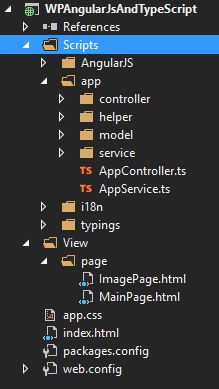
Create a new folder View at the root of the project. And add a page folder inside.

Create 2 new html pages:

  1. ImagePage.html
  2. MainPage.html

view

MainPage:


<div> 
<h1>{{title}}</h1> 

<!-- Add your content here -->
</div> 

ImagePage:


<div>
 <h1>{{title}}</h1>

 <p>Latitude:</p><input type="number" ng-model="lat" />
 <p>Longitude:</p><input type="number" ng-model="lon" />
 <p>Date:</p><input type="date" ng-model="date" />

 <input type="button" value="Get" ng-click="GetImage()" />
 </br>
 <img ng-src="{{ImageResult.url}}" />
 <p>{{ImageResult.id}} {{ImageResult.date}} {{ImageResult.cloud_score}} {{ImageResult.url}}</p>

</div>

Index:
Change the index like this:


<!DOCTYPE html>

<html lang="en">
<head>
 <meta charset="utf-8" />
 <title>TypeScript HTML App</title>

 <!-- CSS -->
 <link rel="stylesheet" href="app.css" type="text/css" />

 <!-- Scripts -->
 <script src="Scripts/AngularJS/angular.js"></script>
 <script src="Scripts/AngularJS/angular-route.js"></script>

 <!-- Helper -->
 <script src="Scripts/app/helper/PageHelper.js"></script>

 <!-- Controllers -->
 <script src="Scripts/app/controller/Common.js"></script>
 <script src="Scripts/app/controller/MainController.js"></script>
 <script src="Scripts/app/controller/ImagePageController.js"></script>
 <script src="Scripts/app/controller/MainPageController.js"></script>

 <!-- Services -->
 <script src="Scripts/app/service/NASAService.js"></script>

 <!-- App Service -->
 <script src="Scripts/app/AppService.js"></script>

 <!-- App Controller -->
 <script src="Scripts/app/AppController.js"></script>

</head>
<body ng-app="App" ng-controller="MainController">
 <button ng-click="showMainPage()">Main Page</button> <!-- Shows the MainPage -->
 <button ng-click="showImagePage()">Image Page</button> <!-- Shows the ImagePage -->
 <ng-view></ng-view> <!-- This directive will render the html -->

</body>
</html>

Routing

Modify the AppController class:


module Controller {

 var app = angular.module("App", ["Service", "ngRoute"]);

 //Routing for the navigation between pages
 app.config(($routeProvider: ng.route.IRouteProvider) => {
 $routeProvider

 //Main Page Route
 .when(Helper.PageHelper.MainPageUrl, {
 templateUrl: 'view/page/MainPage.html',
 controller: 'MainPageController'
 })

 .when(Helper.PageHelper.ImagePageUrl, {
 templateUrl: 'view/page/ImagePage.html',
 controller: 'ImagePageController'
 })

 });

 //Controllers
 app.controller("MainController", MainController);
 app.controller("MainPageController", MainPageController);
 app.controller("ImagePageController", ImagePageController);

}

Now you should be able to navigate between pages. You can now add your own content to the pages and start creating some nice apps 🙂

AngularJS And TypeScript Part 2

AngularJS 1.4.1

TypeScript 1.5

Project Architecture:

Create a new folder inside you scripts folder for you application this folder will contain all the TypeScript files of the application.

Then inside create one folder for each layer:

  1. controller: contains all the application controllers
  2. service : contains all the services
  3. model: contains all the object / data model
  4. helper: contains transverse class

architecture

Then create 2 TypeScript file:

  1. AppController: contains the main Angular module with the declaration of the all the controllers and the page routing if used.
  2. AppService: contains the Angular module for the all the services with the declaration

Finally remove the app.ts file, we won’t be using it.

For this example we’ll be using a free rest service from the NASA.

Model:

Create a new TypeScript file inside the model folder named NASAImage:


module Model {
    //This class will contain the data returned by the NASA Rest Api
    export class NASAImage{

        id: string;
        date: Date;
        url: string;
        cloud_score: number;

    }

}

Service:

Create a new TypeScript file inside the service folder named NASAService:

module Service { //Define a module in TypeScript (like a namespace in C#)

    //Interface for the result of the rest api
    //The export keyword makes the interface/class accessible (like public in C#/Java)
    export interface ImageResult {

        data: Model.NASAImage;

    }

    export class NASAService {

        //The $http service will be injected automatically by Angular
        constructor(private $http: ng.IHttpService) { //Constructor Syntax

        }

        //Service Method declaration
        GetImage(lat: Number, lon: Number, date: Date): ng.IPromise<{}> { //Return a Promise so I can manage my async above, from the caller

            var url = "https://api.nasa.gov/planetary/earth/imagery?lon=" + lon + "&lat=" + lat + "&date=" + date.getFullYear() + "-" + (date.getMonth() + 1) + "-" + date.getDate() + "&cloud_score=True&api_key=DEMO_KEY"

            return this.$http.get(url);
        }
    }

}

Controller:

Create a new TypeScript file inside the controller folder named MainController:

module Controller { 

   //New Public Interface
   //Inherit from the ng.IScope interface of Angular
   //ng is an alias for Angular module
   //It's important to inherit the IScope to be able to add the properties/functions that you want to use
   //because in TypeScript you can't add dynamicaly properties or functions like in JavaScript
    export interface MainControllerScope extends ng.IScope { 

        lat: Number;
        lon: Number;
        date: Date;
        GetImage: Function;

        ImageResult: Model.NASAImage;

    }

    export class MainController { //New Public Class

        //The $scope parameter and the NASAService will be injected automatically by Angular like in JavaScript
        constructor(private $scope: MainControllerScope, private NASAService: Service.NASAService) {

        //GetImage function declaration
        $scope.GetImage = () => {

         NASAService.GetImage($scope.lat, $scope.lon, $scope.date).then(function (result: Service.ImageResult) {

           $scope.ImageResult = result.data;
          },
            function (error) {

          });

         };

        }

    }

}

Angular module for Services (AppService.ts):

This file is used to reference all the services of your application and add them to the Service angular module (application).


module Service {

 var app = angular.module("Service", []);

 //Services
 app.service("NASAService", NASAService);

}

Angular module for Controllers (AppController.ts):

This file is used to reference all the controllers of your application and add them to the angular application of you web application.


module Controller {

 //We need to add our Service module as reference so that way we can use the services inside our controller and angular can find the services and inject them where we want.
 var app = angular.module("App", ["Service"]);

 //Controllers
 app.controller("MainController", MainController);

}

 View:

Just modify the current index.html file like that:

<!DOCTYPE html>

<html lang="en">
<head>
<meta charset="utf-8" />
<title>TypeScript HTML App</title>

<!-- CSS -->
<link rel="stylesheet" href="app.css" type="text/css" />

<!-- The script order is important, if you don't want to add them all you can use a tool to create a bundle with all your scripts, but be careful they must be in the right order -->

<!-- Scripts -->
<script src="Scripts/AngularJS/angular.js"></script>

<!-- Controllers -->
<script src="Scripts/app/controller/MainController.js"></script>

<!-- Services -->
<script src="Scripts/app/service/NASAService.js"></script>

<!-- App Service -->
<script src="Scripts/app/AppService.js"></script>

<!-- App Controller -->
<script src="Scripts/app/AppController.js"></script>

</head>
<!-- Adding angular app and the controller -->
<body ng-app="App" ng-controller="MainController">

<p>Latitude:</p><input type="number" ng-model="lat" />
<p>Longitude:</p><input type="number" ng-model="lon" />
<p>Date:</p><input type="date" ng-model="date" />

<input type="button" value="Get" ng-click="GetImage()" />
</br>
<img ng-src="{{ImageResult.url}}" />
<p>{{ImageResult.id}} {{ImageResult.date}} {{ImageResult.cloud_score}} {{ImageResult.url}}</p>

</body>
</html>

AngularJS And TypeScript Part 1

AngularJS 1.4.1

TypeScript 1.5

Prerequisites:

Visual Studio 2015 RC (Community Or Enterprise)
This will also work with Visual Studio 2013 but Visual Studio 2015 has better syntax coloration and auto-completion.

TypeScript 1.5 (Or Higher)

Project configuration

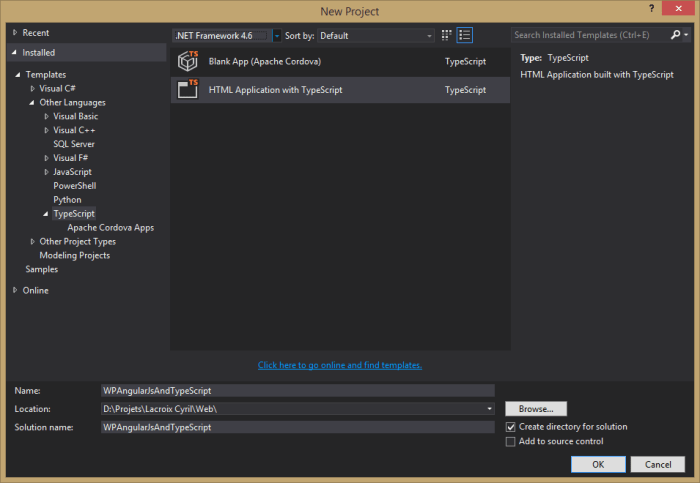
1) Create a new TypeScript project:

New TypeScript Project

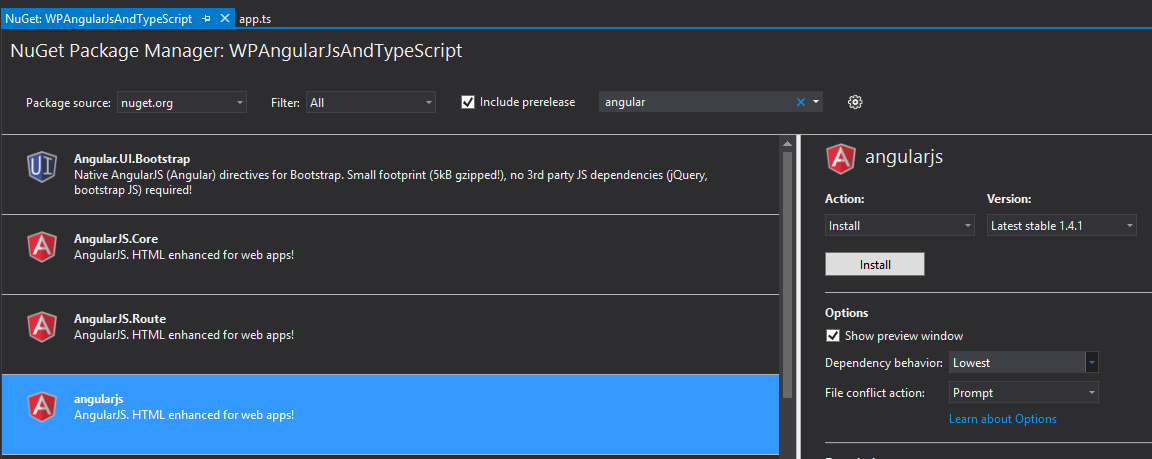
2) Install AngularJs with NuGet Package Manager:

Angularjs 1.41 => This NuGet Package will install all modules of AngularJS

  If you don’t need or want all the modules you can just install AngularJS.Core or the desired modules

AngularJSNuget

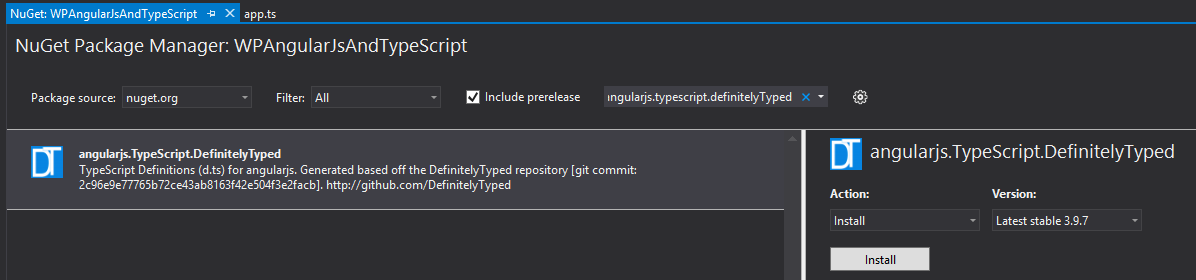
3) To work with TypeScript we need to add the DefinitelyTyped file for each modules that we want to use.

You need to search for angularjs.TypeScript.DefinitelyTyped in NuGet

AngularJSDT

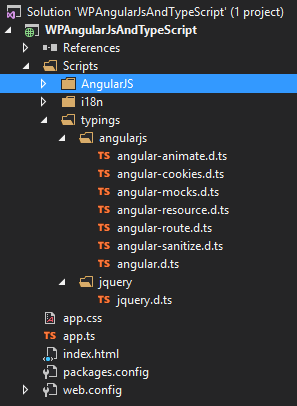
The installation of this package will add the folder typings under script with the.d.ts files inside.

Those files contains the Type definition for all the JavaScript of angularJS.

You’ll always need a .d.ts file for every JavaScript file that you want to use with TypeScript.

typings

After that you need to upgrade the jquery.d.ts file

Open NuGet then filter on Installed then select jquery.TypeScript.DefinitelyTyped and upgrade to the latest version (2.2.5)

SwiftyBall – ImagineCup 2012

For the Microsoft Imagine Cup 2012 contest I have participated with 3 of my classmates in the category Game Design Phone and SwiftyBall was our project. With this project we won the 1st place at French Imagine Cup contest. And in a second time we had the chance to represent the France in the international competition at Sydney Australia. Our project reached the top 5 of the best student game of the world for mobile plateform.

SwiftyBall is a physic puzzle game. The goal is to help a little ball of garbage to go to the recycle factory. To do so you will have to interact with many elements. Actually we are finalizing this project to sale it in the coming months at first on Windows 8 and Windows Phone now this project is called Miwee.

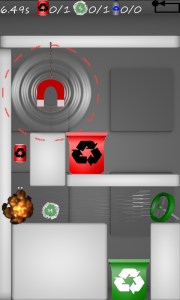
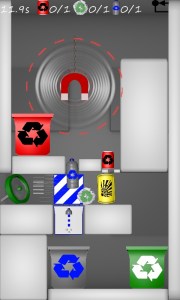
RecycleIT – ImagineCup 2011

RecycleIT is a PuzzleGame designed for the Imagine Cup 2011.

We were 2 students working on this project and we won the third place at the French final of Imagine Cup 2011.

Hugo Vauvert took care of the Level Design and the creation of some elements and I designed all the game engine and the graphics.

RecycleIT is a physic puzzle game. To complete a level you need to sort different type of elements, like aluminum, paper and plastic. Each elements can be affected by one “interactor”. The player will have to solve more and more complicated enigma.

This game is available on the Windows Phone Store here!