AngularJS And TypeScript Page Routing

AngularJS 1.4.1

TypeScript 1.5

Page routing helps to create a clear structure when you need to assiociate views with controllers.

If you are just using angularJS.core you need to add angularJS.route to your project with nuget packages manager.

You can start this tutorial after AngularJS and TypeScript part 2. We are going to add 2 new pages with 2 controllers and keep the MainController for the navigation.

Controllers

Create a Common.ts file inside the controller folder. This file will be used for cross controllers elements.

Create a new interface inside like below, this interface will be a base for the scope of the page controllers . You can add in this interface all your properties and functions to share between your scopes.


module Controller {

export interface IPageControllerScope extends ng.IScope {

//For now we just have a title
title: string;

}

}

Inside the helper folder create a PageHelper class. This class centralize the URLs for the pages.


module Helper {

 export class PageHelper {

 public static MainPageUrl: string = "/";
 public static ImagePageUrl: string = "/Image";
 }

}

Create 2 controllers inside the controller folder:

  1. MainPageController
  2. ImagePageController

MainPageController:


module Controller {

export interface IMainPageScope extends IPageControllerScope {

}

export class MainPageController {

constructor(private $scope: IMainPageScope) {

$scope.title = "Main Page";

}

}

}

ImagePageController:

Move the code from MainController to ImagePageController.


module Controller {

 export interface IMainPageScope extends IPageControllerScope {
 lat: Number;
 lon: Number;
 date: Date;
 GetImage: Function;

 ImageResult: Model.NASAImage;
 
 }

 export class ImagePageController {

 constructor(private $scope: IMainPageScope, private NASAService: Service.NASAService) {

 $scope.title = "Image Page";

 $scope.lat = 1.5;
 $scope.lon = 100.75;

 $scope.GetImage = () => {

 NASAService.GetImage($scope.lat, $scope.lon, $scope.date).then(function (result: Service.ImageResult) {

 $scope.ImageResult = result.data;
 },
 function (error) {

 });

 };

 }

 }

}

MainController:

Modify the MainController, add 2 functions to navigate and 1 method to modify the page url:


module Controller {

 export interface MainControllerScope extends ng.IScope {
 showMainPage: Function;
 showImagePage: Function;
 }

 export class MainController {


 constructor(private $scope: MainControllerScope) {

//Function to navigate to the MainPage
 $scope.showMainPage = () => {
 this.goToPage(Helper.PageHelper.MainPageUrl);
 };

//Function to navigate to the ImagePage
 $scope.showImagePage = () => {
 this.goToPage(Helper.PageHelper.ImagePageUrl);
 
 };

 }

//Function helper to change the page url
 goToPage = (pageUrl: string): void => {
 location.assign("#" + pageUrl);
 }
 

 }

}

Views

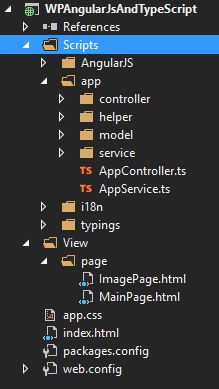
Create a new folder View at the root of the project. And add a page folder inside.

Create 2 new html pages:

  1. ImagePage.html
  2. MainPage.html

view

MainPage:


<div> 
<h1>{{title}}</h1> 

<!-- Add your content here -->
</div> 

ImagePage:


<div>
 <h1>{{title}}</h1>

 <p>Latitude:</p><input type="number" ng-model="lat" />
 <p>Longitude:</p><input type="number" ng-model="lon" />
 <p>Date:</p><input type="date" ng-model="date" />

 <input type="button" value="Get" ng-click="GetImage()" />
 </br>
 <img ng-src="{{ImageResult.url}}" />
 <p>{{ImageResult.id}} {{ImageResult.date}} {{ImageResult.cloud_score}} {{ImageResult.url}}</p>

</div>

Index:
Change the index like this:


<!DOCTYPE html>

<html lang="en">
<head>
 <meta charset="utf-8" />
 <title>TypeScript HTML App</title>

 <!-- CSS -->
 <link rel="stylesheet" href="app.css" type="text/css" />

 <!-- Scripts -->
 <script src="Scripts/AngularJS/angular.js"></script>
 <script src="Scripts/AngularJS/angular-route.js"></script>

 <!-- Helper -->
 <script src="Scripts/app/helper/PageHelper.js"></script>

 <!-- Controllers -->
 <script src="Scripts/app/controller/Common.js"></script>
 <script src="Scripts/app/controller/MainController.js"></script>
 <script src="Scripts/app/controller/ImagePageController.js"></script>
 <script src="Scripts/app/controller/MainPageController.js"></script>

 <!-- Services -->
 <script src="Scripts/app/service/NASAService.js"></script>

 <!-- App Service -->
 <script src="Scripts/app/AppService.js"></script>

 <!-- App Controller -->
 <script src="Scripts/app/AppController.js"></script>

</head>
<body ng-app="App" ng-controller="MainController">
 <button ng-click="showMainPage()">Main Page</button> <!-- Shows the MainPage -->
 <button ng-click="showImagePage()">Image Page</button> <!-- Shows the ImagePage -->
 <ng-view></ng-view> <!-- This directive will render the html -->

</body>
</html>

Routing

Modify the AppController class:


module Controller {

 var app = angular.module("App", ["Service", "ngRoute"]);

 //Routing for the navigation between pages
 app.config(($routeProvider: ng.route.IRouteProvider) => {
 $routeProvider

 //Main Page Route
 .when(Helper.PageHelper.MainPageUrl, {
 templateUrl: 'view/page/MainPage.html',
 controller: 'MainPageController'
 })

 .when(Helper.PageHelper.ImagePageUrl, {
 templateUrl: 'view/page/ImagePage.html',
 controller: 'ImagePageController'
 })

 });

 //Controllers
 app.controller("MainController", MainController);
 app.controller("MainPageController", MainPageController);
 app.controller("ImagePageController", ImagePageController);

}

Now you should be able to navigate between pages. You can now add your own content to the pages and start creating some nice apps 🙂
AngularJS And TypeScript Part 2

AngularJS 1.4.1

TypeScript 1.5

Project Architecture:

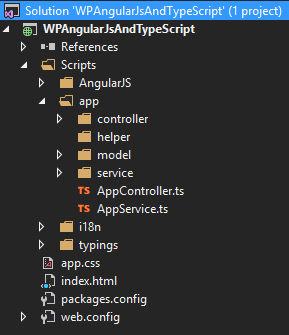
Create a new folder inside you scripts folder for you application this folder will contain all the TypeScript files of the application.

Then inside create one folder for each layer:

  1. controller: contains all the application controllers
  2. service : contains all the services
  3. model: contains all the object / data model
  4. helper: contains transverse class

architecture

Then create 2 TypeScript file:

  1. AppController: contains the main Angular module with the declaration of the all the controllers and the page routing if used.
  2. AppService: contains the Angular module for the all the services with the declaration

Finally remove the app.ts file, we won’t be using it.

For this example we’ll be using a free rest service from the NASA.

Model:

Create a new TypeScript file inside the model folder named NASAImage:


module Model {
    //This class will contain the data returned by the NASA Rest Api
    export class NASAImage{

        id: string;
        date: Date;
        url: string;
        cloud_score: number;

    }

}

Service:

Create a new TypeScript file inside the service folder named NASAService:

module Service { //Define a module in TypeScript (like a namespace in C#)

    //Interface for the result of the rest api
    //The export keyword makes the interface/class accessible (like public in C#/Java)
    export interface ImageResult {

        data: Model.NASAImage;

    }

    export class NASAService {

        //The $http service will be injected automatically by Angular
        constructor(private $http: ng.IHttpService) { //Constructor Syntax

        }

        //Service Method declaration
        GetImage(lat: Number, lon: Number, date: Date): ng.IPromise<{}> { //Return a Promise so I can manage my async above, from the caller

            var url = "https://api.nasa.gov/planetary/earth/imagery?lon=" + lon + "&lat=" + lat + "&date=" + date.getFullYear() + "-" + (date.getMonth() + 1) + "-" + date.getDate() + "&cloud_score=True&api_key=DEMO_KEY"

            return this.$http.get(url);
        }
    }

}

Controller:

Create a new TypeScript file inside the controller folder named MainController:

module Controller { 

   //New Public Interface
   //Inherit from the ng.IScope interface of Angular
   //ng is an alias for Angular module
   //It's important to inherit the IScope to be able to add the properties/functions that you want to use
   //because in TypeScript you can't add dynamicaly properties or functions like in JavaScript
    export interface MainControllerScope extends ng.IScope { 

        lat: Number;
        lon: Number;
        date: Date;
        GetImage: Function;

        ImageResult: Model.NASAImage;

    }

    export class MainController { //New Public Class

        //The $scope parameter and the NASAService will be injected automatically by Angular like in JavaScript
        constructor(private $scope: MainControllerScope, private NASAService: Service.NASAService) {

        //GetImage function declaration
        $scope.GetImage = () => {

         NASAService.GetImage($scope.lat, $scope.lon, $scope.date).then(function (result: Service.ImageResult) {

           $scope.ImageResult = result.data;
          },
            function (error) {

          });

         };

        }

    }

}

Angular module for Services (AppService.ts):

This file is used to reference all the services of your application and add them to the Service angular module (application).


module Service {

 var app = angular.module("Service", []);

 //Services
 app.service("NASAService", NASAService);

}

Angular module for Controllers (AppController.ts):

This file is used to reference all the controllers of your application and add them to the angular application of you web application.


module Controller {

 //We need to add our Service module as reference so that way we can use the services inside our controller and angular can find the services and inject them where we want.
 var app = angular.module("App", ["Service"]);

 //Controllers
 app.controller("MainController", MainController);

}

 View:

Just modify the current index.html file like that:

<!DOCTYPE html>

<html lang="en">
<head>
<meta charset="utf-8" />
<title>TypeScript HTML App</title>

<!-- CSS -->
<link rel="stylesheet" href="app.css" type="text/css" />

<!-- The script order is important, if you don't want to add them all you can use a tool to create a bundle with all your scripts, but be careful they must be in the right order -->

<!-- Scripts -->
<script src="Scripts/AngularJS/angular.js"></script>

<!-- Controllers -->
<script src="Scripts/app/controller/MainController.js"></script>

<!-- Services -->
<script src="Scripts/app/service/NASAService.js"></script>

<!-- App Service -->
<script src="Scripts/app/AppService.js"></script>

<!-- App Controller -->
<script src="Scripts/app/AppController.js"></script>

</head>
<!-- Adding angular app and the controller -->
<body ng-app="App" ng-controller="MainController">

<p>Latitude:</p><input type="number" ng-model="lat" />
<p>Longitude:</p><input type="number" ng-model="lon" />
<p>Date:</p><input type="date" ng-model="date" />

<input type="button" value="Get" ng-click="GetImage()" />
</br>
<img ng-src="{{ImageResult.url}}" />
<p>{{ImageResult.id}} {{ImageResult.date}} {{ImageResult.cloud_score}} {{ImageResult.url}}</p>

</body>
</html>

AngularJS And TypeScript Part 1

AngularJS 1.4.1

TypeScript 1.5

Prerequisites:

Visual Studio 2015 RC (Community Or Enterprise)
This will also work with Visual Studio 2013 but Visual Studio 2015 has better syntax coloration and auto-completion.

TypeScript 1.5 (Or Higher)

Project configuration

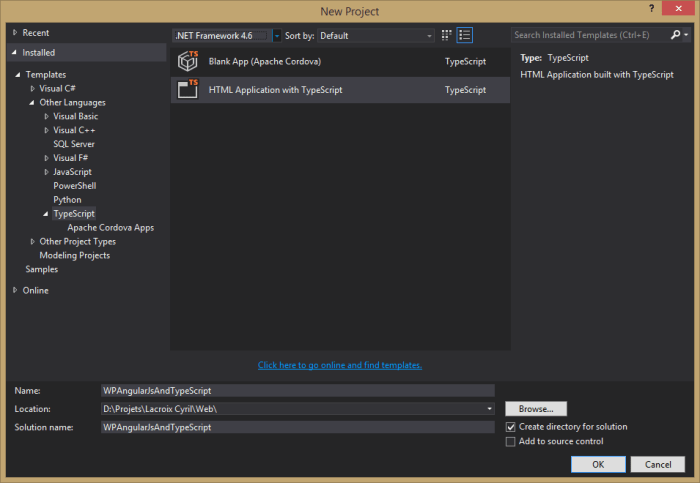
1) Create a new TypeScript project:

New TypeScript Project

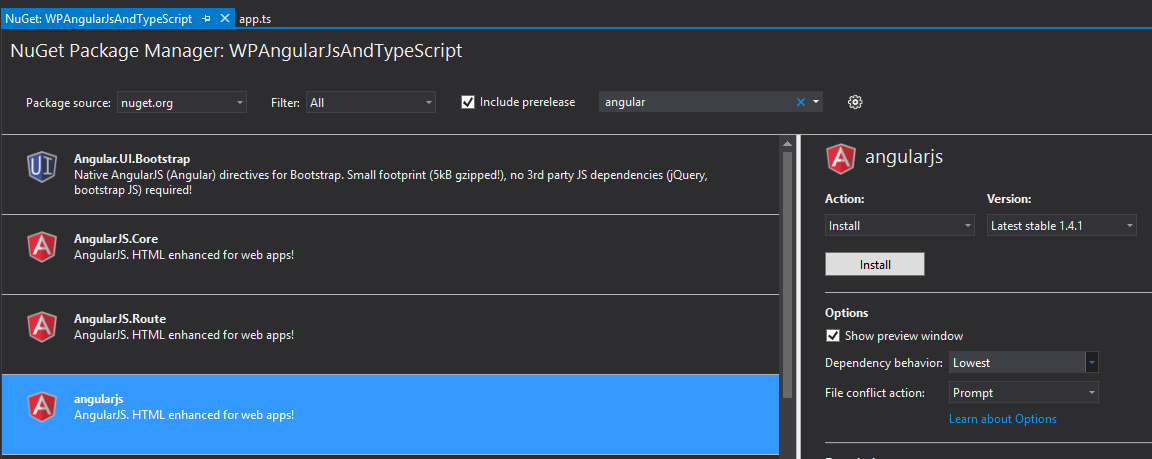
2) Install AngularJs with NuGet Package Manager:

Angularjs 1.41 => This NuGet Package will install all modules of AngularJS

  If you don’t need or want all the modules you can just install AngularJS.Core or the desired modules

AngularJSNuget

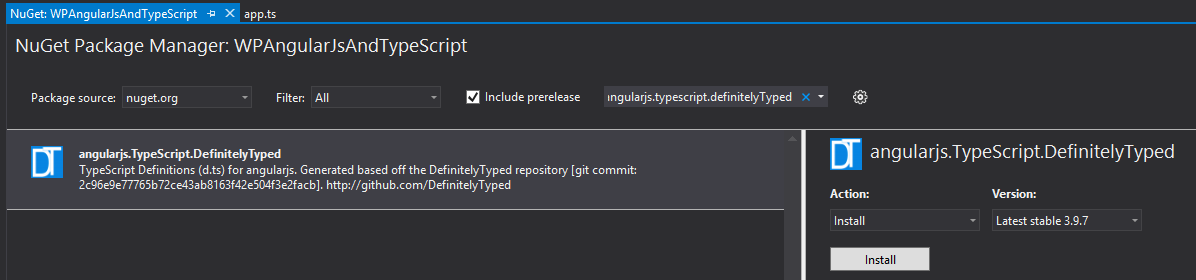
3) To work with TypeScript we need to add the DefinitelyTyped file for each modules that we want to use.

You need to search for angularjs.TypeScript.DefinitelyTyped in NuGet

AngularJSDT

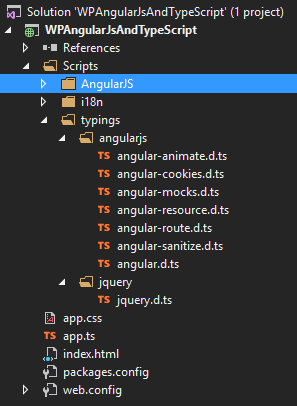
The installation of this package will add the folder typings under script with the.d.ts files inside.

Those files contains the Type definition for all the JavaScript of angularJS.

You’ll always need a .d.ts file for every JavaScript file that you want to use with TypeScript.

typings

After that you need to upgrade the jquery.d.ts file

Open NuGet then filter on Installed then select jquery.TypeScript.DefinitelyTyped and upgrade to the latest version (2.2.5)